



Windows, being one of the most used OS, brings great challenges for Microsoft to keep its users impressed in the next version of Windows.
Although Windows 7 has done exceptionally well since its release, Microsoft has been constantly working to make the next version of Windows a better one by further improving upon the existing features, and have added new impressive Windows 8 features along with a stunning UI.
Microsoft released the early version of Windows 8 on a prototype tablet last week. Those of you who would like to taste and experience the all new Windows 8, you can download the Developer Preview, which is currently in pre-beta version. The developer version shows off the current stage of the OS. It is available for free download, and comes in three different packages:
(1) 64-bit version – Only the OS
(2) 32-bit version – Only the OS
(3) 64-bit version with developer tools
Windows 8 features
Windows 8 offers a number of new Windows 8 features from its all new UI to Windows App Store and improvised security features. Here’s a list of new features and improvements which will arrive with Windows 8:
Support for both x86 PCs and ARM tablets
Windows 8 is the first edition of Windows which will work on both ARM based tablets and traditional x86 (as well as x32 and x64) PCs based on ARM processors from Intel and AMD.
“Support for ARM-based chipsets, touch, and sensors makes Windows 8 work beautifully on your choice of a full spectrum of devices, such as 10-inch slates with all-day battery life, ultra-lightweight laptops, and powerful all-in-ones with 27-inch high-definition screens,” Microsoft contends, in a Windows 8 Guide distributed with Windows Developer Preview
Windows To Go
The “Windows To Go” seems to be an exciting feature that basically allows Windows 8 to boot from a USB device (called as Live USB), including user’s programs, settings and files. The feature is designed to work with both USB 2.0 and USB 3.0, and on both legacy NIOS and UDFI firmware. However, Microsoft says that a user will not be able to “Hibernate” with this feature.
“Windows To Go is a new feature in Windows 8 that enables enterprise administrators to create USB drives containing complete, managed Windows images that users can use to boot and run Windows on any Windows 7 or Windows 8 capable computer. Windows To Go makes it possible for employees to use a managed device whether they work from home, a client office or in a free seating environment. This session will discuss Windows To Go, its hardware requirements and building compatible and complementary software.”
Another interesting thing about this feature is that, if the USB drive is removed, Windows will automatically freeze, but will continue to operate if the USB drive is inserted back in the next 60 seconds after removal.
Windows Store
To compete with Apple, Windows has confirmed the introduction of a Windows Store, similar to Mac App Store, which allows users to browse through Windows applications, while developers can publish their Metro-style apps on Windows 8 devices.
Few days back, Microsoft gave a strategic view of its app store, and gave a quick demo on how it works. Microsoft revealed that the Windows App Store will be the only place where users can access the Metro-styled apps. Here’s a quick demo that shows how users will be able to buy their apps:
Windows 8 User Interface
Speaking about the UI, Windows 8 certainly has got a mind blowing interactive UI, which has been extensively redesigned to a “Metro-style” design, which shows the most important information to you, embodies simplicity, and gives you full control over it. The UI is designed to provide a fluid and intuitive interaction and navigation with touch, or a mouse and keyboard.
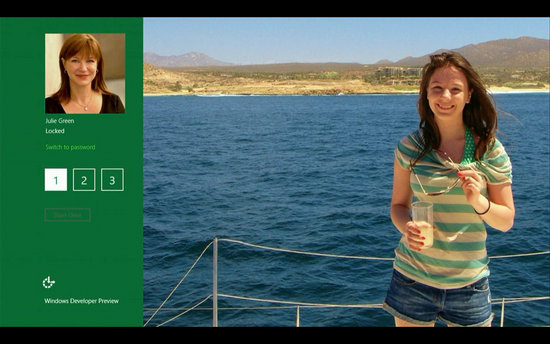
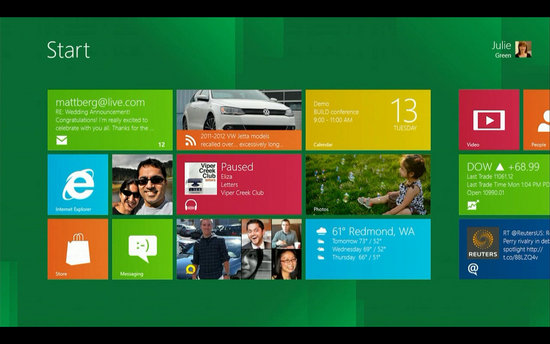
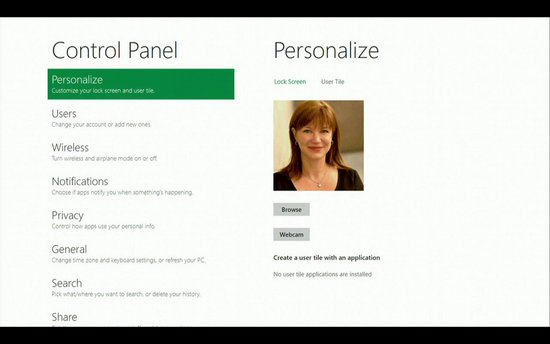
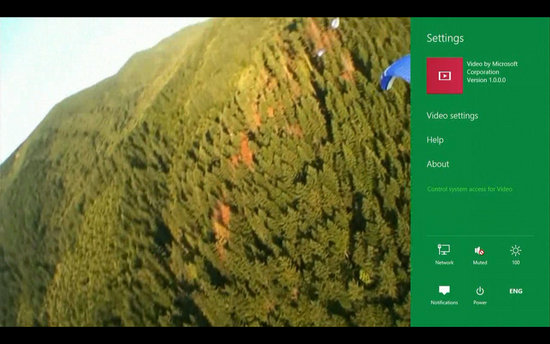
Julie Larson-Green, Corporate Vice President, Windows who stated: “Everything that’s great about Windows 7, is better in Windows 8,” gave a quick hands on look at the Windows 8 user-interface. Here are some of the screenshots she released:
Windows Logon Screen – Unlike the traditional way of entering a password to unlock the screen, Windows 8 can be unlocked by just tapping on the right areas of the screen.
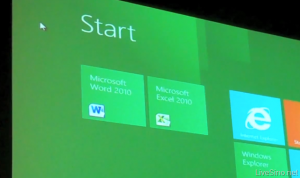
Windows 8 Start Screen – The Start screen is yet another impressive UI. The screen basically groups all your applications together, which you can easily drag and drop, or add new things.
Control Panel
Playing Videos in Windows 8
Windows 8 Task Manager
Improved Windows Defender
The Windows Defender which was first released with Windows Vista is getting a security upgrade with the upcoming Windows 8. This would probably edge-our third-party antivirus and anti-malware programs. Windows Defender will become a full-fledged anti-malware solution for Windows 8. This will include protection against all types of malware such as virus, worms, trojans and rootkits.
Internet Explore 10
In addition to that, Windows Defender will provide real-time detection and protection from malware threats using a file system filter, and will interface with Windows secured boot, which is another security feature.
The developer preview of Windows 8 comes with a Metro version of Internet Explore (IE) 10. Since it is a preview version, it does not support any browser plugins and extension – including Adobe Flash and Microsoft Silverlight. However, it will feature full screen browsing mode by default, implements several new HTML5 capabilities, turbocharges HTML5 performance, and adds some security options for Web applications.
Windows 8 Minimum System Requirements
It is reported that Windows 8 is expected to have the same system requirements as Windows 7, and will run on existing PCs/laptops that run Windows 7. Here are the following minimum system requirements to run Windows 8:
Processor: 1GHz or faster 32-bit or 64-bit processor
RAM: 1GB (32-bit) or 2GB (64-bit)
HD Space: 16GB for 32-bit (or 20GB for 64-bit)
We can expect Windows 8 to be launched sometime in mid-late 2012, however, it’s too early to predict the Windows 8 release date, since it is still under development. Nevertheless, the only question that haunts each and every one of us – Will Windows 8 win the battle against Apple which it had lost several years back?
Now that the Indian rupee has an identity, the question is: how soon will our computer keyboards start reflecting it? Very quickly, it seems. Vendors say they will roll out the symbol as soon as the Bureau of Indian Standards (BIS) sets the guidelines, since it takes only a minor software change to incorporate it.
It would be interesting to see which single-function key (Insert, Page Up, Page Down, Delete or some function key) will bear the rupee symbol. According to S Rajendran, chief marketing officer, Acer India, technically it's an almost inconsequential issue.
As Per the Reserve Bank of India New Rupee Symbol Entered into the Market but it’s Take some more time to Use it in your Computer or Laptop. But Be the First to use it In Your computer before other use it.
As You Know Users can’t type the Rupee symbol (like dollar symbol – $) using the standard keyboard as the unique code (ASCll) of the symbol hasn’t assigned by the Unicode Consortium. But here is one font – Rupee Font Version 2.0 which lets you type the Rupee symbol easily in Notepad, MS Word, WordPad etc. For this you need to download and install the font on your computer.
Here is an step by step Guide on how to use New Symbol in your computer
2. Go to your Control Panel and find Fonts folder. Copy and paste the downloaded file here.
3. And you are done, now start using it.
Now when ever you want to type the new Rupee symbol, just select the Rupee Foradian font from the Font window in your application (example:- MS Word, Notepad, WordPad) .
How to type Indian Rupee symbol in your computer to show it in Office Applications and in other text editors
1.To type Indian rupee symbol open Ms Word
2Change font from time New Roman to Rupee Foradian select the Font size and click Ok to save changes.
2.Now hit ~ key below Esc button on keyboard to get Indian Rupee symbol in Ms Word ,you have to do similarly in Notepad also.
With all the less pleasant verdicts about Vista, Windows 7 is perhaps PC users’ next best news. Codenamed Blackcomb, this new Microsoft operating system is surely a successor over it’s predecessor Windows XP and definitely Vista. With Microsoft to end their support for Windows XP in 2014, we figured Windows 7 will be completely taking over things in the next year or so.
If you are a Windows users it’s probably time for a change, or at least tryout this new operating system. Here are some shortcut keys to help improve your productivity and user experience with Windows 7. Full list after jump.
General Windows 7 Shortcuts
Shortcut
Description
Win + UP Arrow
Maximize the current window
Win + Down Arrow
Restore down or minimize current windows
Win + Left Arrow
Dock the current window to the left half of the screen
Win + Right Arrrow
Dock the current window to the right half of the screen
Win + [number]
Activate and run the program pinned on Windows 7 Taskbar, running program won’t be affected
Win + Home
Minimize all but the current window
Win + Space
Makes all windows transparent so you can see through to the desktop
Win + Pause/Break
Open System Properties
Win + Tab
Flip Aero 3D [press Tab to cycle between Windows]
Win + B
Move focus to notification tray (the right-most portion of the taskbar)
Win + D
Show/Hide desktop
Win + E
Windows Explorer is launched
Win + F
Search
Win + G
Bring all gadgets on top and foreground
Win + L
Lock Computer
Win + M
Minimize all windows
Win + P
Open the projection menu (generally used for laptops connected to projectors)
Win + R
Run Command is launched.
Win + S
OneNote Screen Clipping Tool
Win + T
Show preview thumbnail of running applications in Windows Taskbar one by one without mouse over
Win + X
Mobility Center
Win + #
Quicklaunch
Win + =
Magnifier
Win + [+/-]
Enables the magnifier and zooms in/out
Win + Shift + Up Arrow
Maximize vertical size
Win + Shift + Down Arrow
Restore vertical size
Win + Shift + Left Arrow
Jump to left monitor
Win + Shift + Right Arrow
Jump to right monitor
Win + Shift + M
Undo all window minimization
Win + Shift + T
Cycles backwards
Win + Ctrl + F
Opens the Active Directory Find Computers dialog
Ctrl + Right Arrow
Move the cursor to the beginning of the next word
Ctrl + Left Arrow
Move the cursor to the beginning of the previous word
Ctrl + Up Arrow
Move the cursor to the beginning of the previous paragraph
Ctrl + Down Arrow
Move the cursor to the beginning of the next paragraph
Ctrl + Click
A pinned taskbar icon to cycle through the program’s open windows (e.g. IE)
Ctrl + Win + Tab
Persistent flip 3D
Ctrl + Shift with an arrow key
Select a block of text
Ctrl with any arrow key + Spacebar
Select multiple individual items in a window or on the desktop
Ctrl + Shift + Esc
Open Task Manager directly
Ctrl + Shift + N
Create new folder
Shortcuts for Ease of Access
Shortcut
Description
Right SHIFT for eight seconds
Turn Filter Keys on and off
Left ALT+left SHIFT+PRINT SCREEN (or PRTSCRN)
Turn High Contrast on or off
Left ALT+left SHIFT+NUM LOCK
Turn Mouse Keys on or off
SHIFT five times
Turn Sticky Keys on or off
NUM LOCK for five seconds
Open the Ease of Access Center
Win + U
Cycle through all open windows
For: Windows Explorer
Shortcut
Description
Alt + Left Arrow
Go back
Alt + Right Arrow
Go forward
Alt + Up Arrow
Go up a directory
Alt + Enter
Open the Properties window of the current selection
Alt + Spacebar
Open the shortcut menu for the active window
Alt + F4
Close the active window
Alt + Tab
Switch to previous active window
Alt + Esc
Cycle through all open windows
Alt + D
Move focus to address bar
Alt + P
Show/hide the preview panel
Ctrl + N
Open a new window
Ctrl + Mousewheel
Change the view type (extra large, small, list view, detail, etc.)
Num Lock + Asterisk (*) on numeric keypad
Display all subfolders under the selected folder
Num Lock + Plus Sign (+) on numeric keypad
Display the contents of the selected folder
Num Lock + Minus Sign (+) on numeric keypad
Collapse the selected folder
For: Taskbar Modifiers
Shortcut
Description
Shift + Click on icon
Open a new instance
Middle click on icon
Open a new instance
Ctrl + Shift + Click on icon
Open a new instance with Admin privileges
For: Dialog Box
Shortcut
Description
Ctrl + Tab
Move forward through tabs
Ctrl + Shift + Tab
Move back through tabs
Shift + Tab
Move back through options
Tab
Move forward through options
Alt + underlined letter
Perform the command (or select the option) that goes with that letter
Enter
Replaces clicking the mouse for many selected commands
Spacebar
Select or clear the check box if the active option is a check box
Arrow keys
Select a button if the active option is a group of option buttons
Backspace
Open a folder one level up if a folder is selected in the Save As or Open dialog box
IETester is a free WebBrowser that allows you to have the rendering and javascript engines of IE8 beta 2, IE7 IE 6 and IE5.5 on Vista and XP, as well as the installed IE in the same process. New in v0.2.3 : IE8 beta 2 and Print feature !
This is an alpha release, so feel free to post comments/bugs on the IETester forum or contact me directly. Minimum requirement : Windows Vista or Windows XP with IE7 (Windows XP with IE6 has some minor problems and IE7/IE8 instances do not work under this config)
What is a Favicon? A favicon (short for "favorites icon" and also known as a page icon), is an icon associated with a particular website or webpage that is displayed in the browser address bar next to a site's URL.
See what we've done to put the web at your service and make Internet Explorer 8 the best browser for everyday browsing.
Accelerators
Accelerators let you efficiently complete your everyday browsing activities like mapping directions, translating words, emailing your friends, and more in just a few mouse clicks. Learn more.
Common accelerator showing driving directions
InPrivate Browsing
Browse the web without saving your history with Internet Explorer 8's InPrivate Browsing. Now you can shop for that special gift with confidence knowing your family won't accidentally find out or use a shared computer without leaving a trace. Learn More.
The InPrivate button on the Address Bar
Web Slices
Keep up with changes to the sites you care about most. Add a Web Slice and you won't have to go back to the same website again and again for updates on news, stock quotes, online auctions, weather, or even sports scores. Learn more.
A common Web Slice
Search suggestions
Search smarter with detailed suggestions from your favorite search providers and browsing history. See visual previews and get suggested content topics while you type in the enhanced Instant Search Box. Learn more.
A search showing visual content
SmartScreen Filter
New security features help to protect you against deceptive and malicious websites which can compromise your data, privacy and identity. Learn more.
A beta product is software that is ready for user evaluation, but still undergoing testing. You may experience bugs or compatibility issues with web sites while browsing.
Compatibility View
Internet Explorer 8's built-in Compatibility View button enables you to display websites that were designed for older browsers. Simply press the Compatibility View button if you see display problems on a website like misaligned text, images, or text boxes. It's located next to the Refresh button on the Address Bar.
Downloads
Get Internet Explorer 8 Beta 2, the latest version of Microsoft's free web browser.
A beta product is software that is ready for user evaluation, but still undergoing testing. You may experience bugs or compatibility issues with web sites while browsing.
Beta software is at a stage in the development process where it is ready to be evaluated by users while still undergoing testing. Internet Explorer 8 Beta 2 is close to its final release, but you may encounter a few bugs or compatibility issues while browsing websites.
If you're okay with using a beta product, install Internet Explorer 8 Beta 2 and take it for a test drive. We think you'll agree that it's faster, safer, and easier to use than ever. If you don't like it you can easily uninstall it whenever you want.
We understand if you feel uncomfortable installing beta software. Check this website in the coming months to see when the "final" version of Internet Explorer 8 is available.
Looking for information on an older version of Microsoft Internet Explorer?
This will show you how change the settings for the power plan that you have selected to reflect how you want your Windows 7 computer to manage power usage.
Here's How: 1. Open the Control Panel (All Items View). 2. Click on the Power Options icon. 3. Click on the Change plan settings link to the right of the power plan that you want to change the settings for. (See screenshot below) NOTE:Normally you will be changing the power plan that you have selected as your default power plan.
4. To Only Change the Basic Power Plan Settings -
A) Choose how many minutes to wait for the Turn off display and Put the computer to sleep settings, or select never if you do not want to use a setting. (See screenshot below)
B) When done, click on the Save changes button. (See screenshot above) C) Close the Power Options window. (See screenshot below step 3) D) You're done.
5. To Change the Advanced Power Plan Settings -A) Click on the Change advanced power settings link. (See screenshot below)
B) Click on the Change settings that are currently unavailable link. (See screenshot below) NOTE:You will need to be logged on to an administrator account for this option. This option allows you to change the power plan settings that are grayed out.
C) Make changes to the power plan settings below to suite your needs. (See screenshot below) NOTE:See the tables below for some recommend settings for Sleep, Hybrid Sleep, or Hibernate. The settings that are not included in these recommendations are settings that you can set to whatever you like. These are only recommendations, you can choose to do what you want instead of course.
Recommended Settings for SLEEP -
Sleep saves any open documents and programs to memory only, and then puts the computer into a low-power state. If you lose power to the computer, you will also lose what is in memory.
CATEGORY
SETTING
RECOMMEND SETTING
Hard Disk
Turn off hard disk after
Set to at least 1 minute before the computer is set to sleep.
Sleep
Sleep after
This is for the computer. Set to at least 1 minute after Hard disk and Display is set to turn off.
Sleep
Allow hybrid sleep
Set to Off.
Sleep
Hibernate after
Set to Never.
Power buttons and lid
Start menu power button
Set to Sleep.
Display
Turn off display after
Set to at least 1 minute before the computer is set to sleep. Usually set this as the same as the Hard disk time.
Multimedia settings
When sharing media
Set to Allow the computer to sleep to prevent it from waking up the computer.
Recommended Settings for Hybrid Sleep -
Hybrid sleep saves your open documents and programs to memory and to the hard drive, and then puts the computer into a low-power state. After the Hibernate after time you set, it will then put the computer into hibernation.
CATEGORY
SETTING
RECOMMEND SETTING
Hard Disk
Turn off hard disk after
Set to at least 1 minute before the computer is set to sleep.
Sleep
Sleep after
This is for the computer. Set to at least 1 minute after Hard disk and Display is set to turn off.
Sleep
Allow hybrid sleep
Set to On.
Sleep
Hibernate after
Set to at least 1 minute before the computer is set to sleep, and at least 1 minute after Sleep after is set for.
Power buttons and lid
Start menu power button
Set to Sleep.
Display
Turn off display after
Set to at least 1 minute before the computer is set to sleep. Usually set this as the same as the Hard disk time.
Multimedia settings
When sharing media
Set to Allow the computer to sleep to prevent it from waking up the computer.
Recommended Settings for Hibernate -
Hibernation is a power-saving state that saves your open documents and programs to the hard drive and then turns off your computer.
CATEGORY
SETTING
RECOMMEND SETTING
Hard Disk
Turn off hard disk after
Set to at least 1 minute before the computer is set to sleep.
Sleep
Sleep after
Set to Never.
Sleep
Allow hybrid sleep
Set to Off.
Sleep
Hibernate after
Set it to at least 1 minute after Hard disk and Display is set to turn off.
Power buttons and lid
Start menu power button
Set to Hibernate.
Display
Turn off display after
Set to at least 1 minute before the computer is set to hibernate. Usually set this as the same as the Hard disk time.
Multimedia settings
When sharing media
Set to Allow the computer to sleep to prevent it from waking up the computer.
D) When done, click on OK. (See screenshot below step 5C) E) Close the Edit Plan Settings window. (See screenshot below step 5A)
This will show you how to set the Windows 7 Navigation pane to Show or Not Show all folders in the Folder Tree automatically. You can still manually expand the folders not shown to see them though.
EXAMPLE: Not Show All Folders in the Navigation Pane NOTE:This is the default setting in Windows 7.
EXAMPLE: Show All Folders in the Navigation Pane
Here's How:
1. Open Folder Options, and click on the General tab. (See screenshot below)
2. To Not Show All Folders -
A) Uncheck the Show all folders box. (See screenshot above) B) Go to step 4.
3. To Show All Folders -
A) Check the Show all folders box. (See screenshot below step 1)
This will show you how to change the Windows 7 Start Menu power button default action to be either Switch User, Log Off, Lock, Restart, Sleep, Hibernate, or Shutdown when clicked on.
WARNING
This is only available in the Windows 7 Beta (build 6956) version and newer, and not in the Windows 7 Pre-beta (build 6801) version.
EXAMPLE: Start Menu Power Button
Here's How:
1. Right click on the Start button and click on Properties. 2. To the right of Power button action, select the action that you want for the Start Menu power button and click on OK. (See screenshot below)